
Professional Resume Templates
Professional resume and CV templates in Word (.docx) with clean, conservative layouts. Free to download and easy to edit. No sign-up, no watermark.
When to Use This Style
Clean, classic layouts for roles where a polished look matters.
- Apply to corporate, finance, legal, or healthcare roles
- Want a classic layout that never looks out of place
- Prefer a conservative design with clear structure
How to Use Professional Resume Templates
Professional resume templates use clean, conservative layouts with clear sections and plenty of white space. This guide explains how to choose a layout, what makes a professional resume or CV work, and how to fill one in.How to Choose a Professional Layout
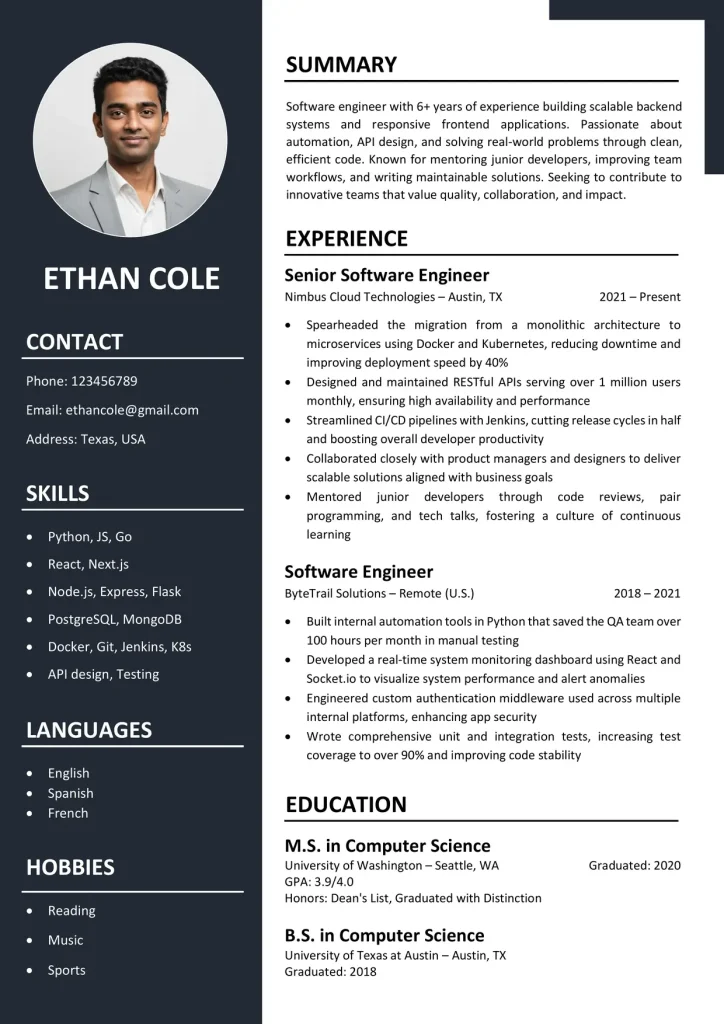
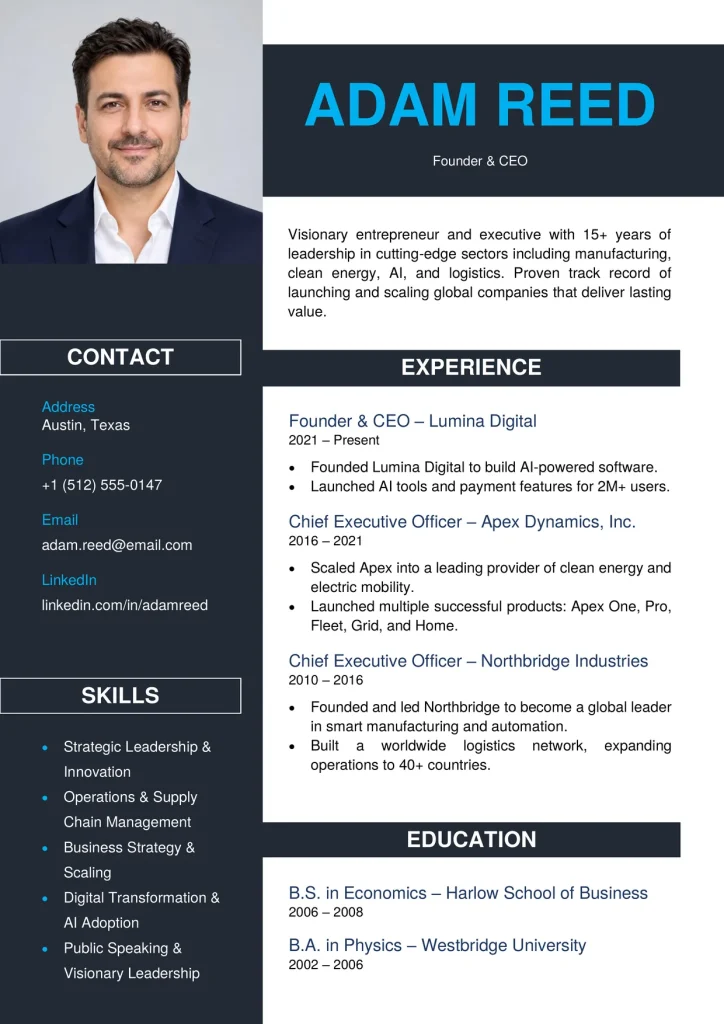
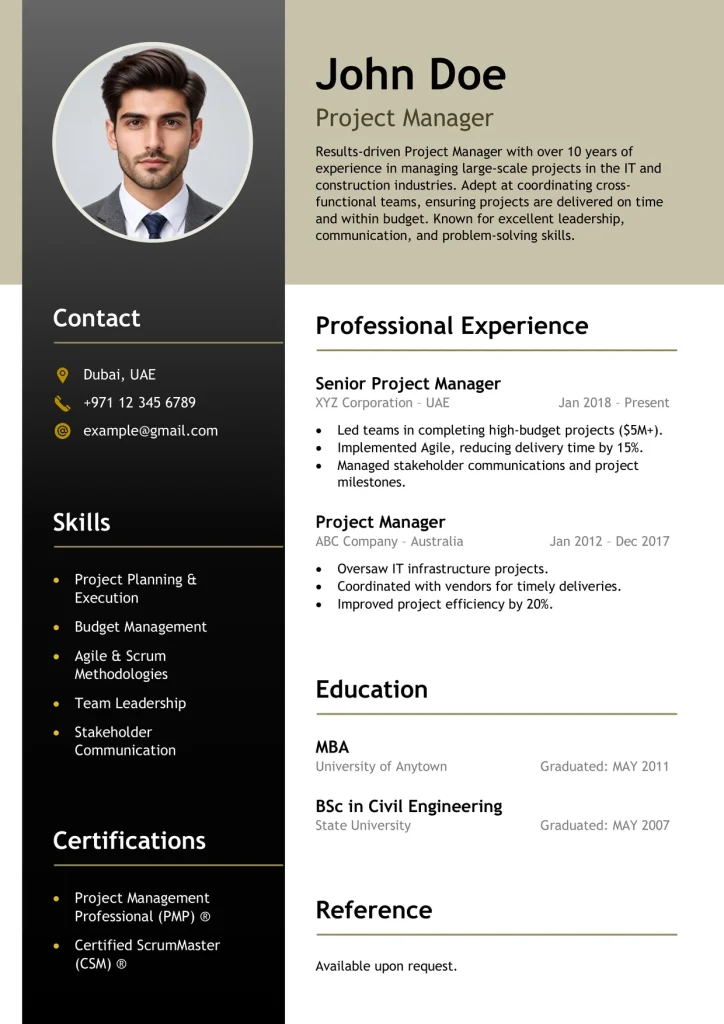
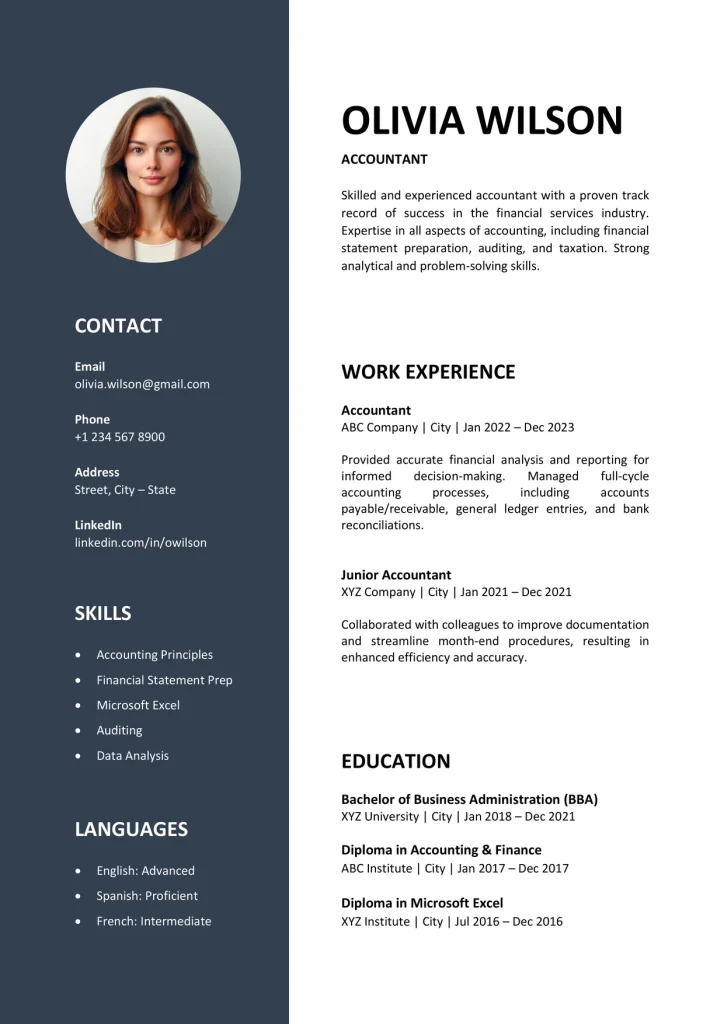
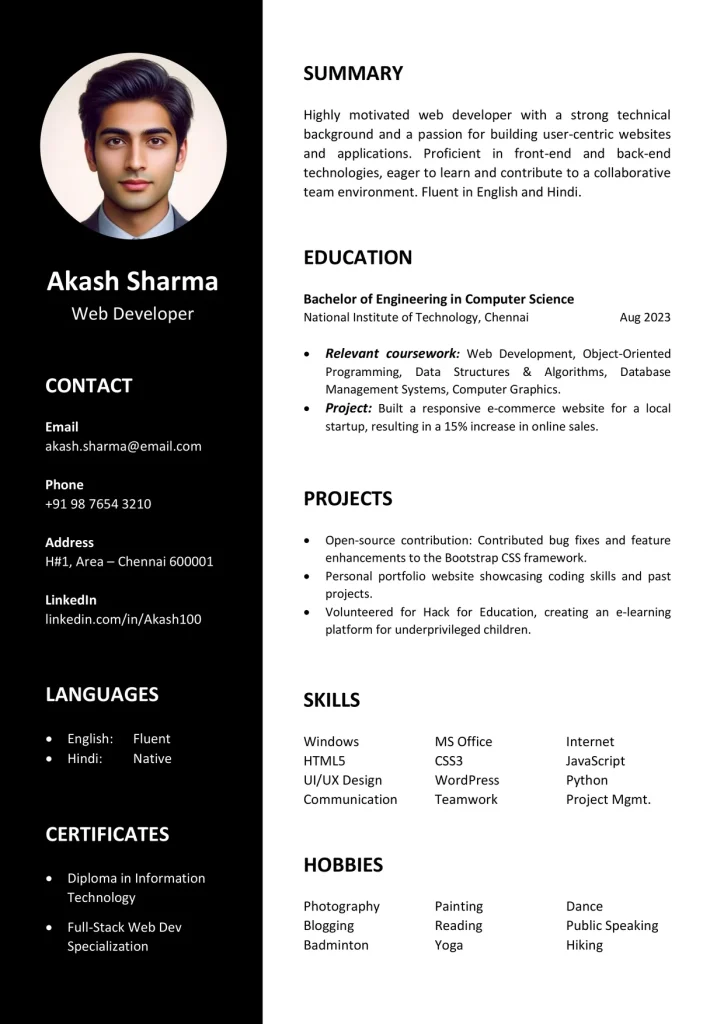
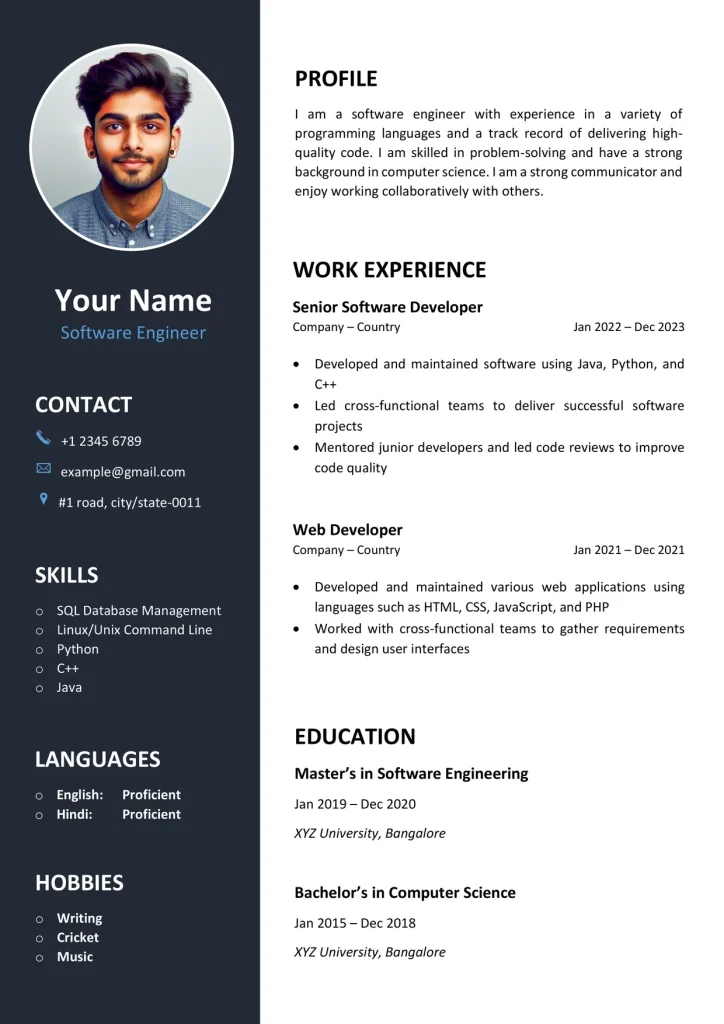
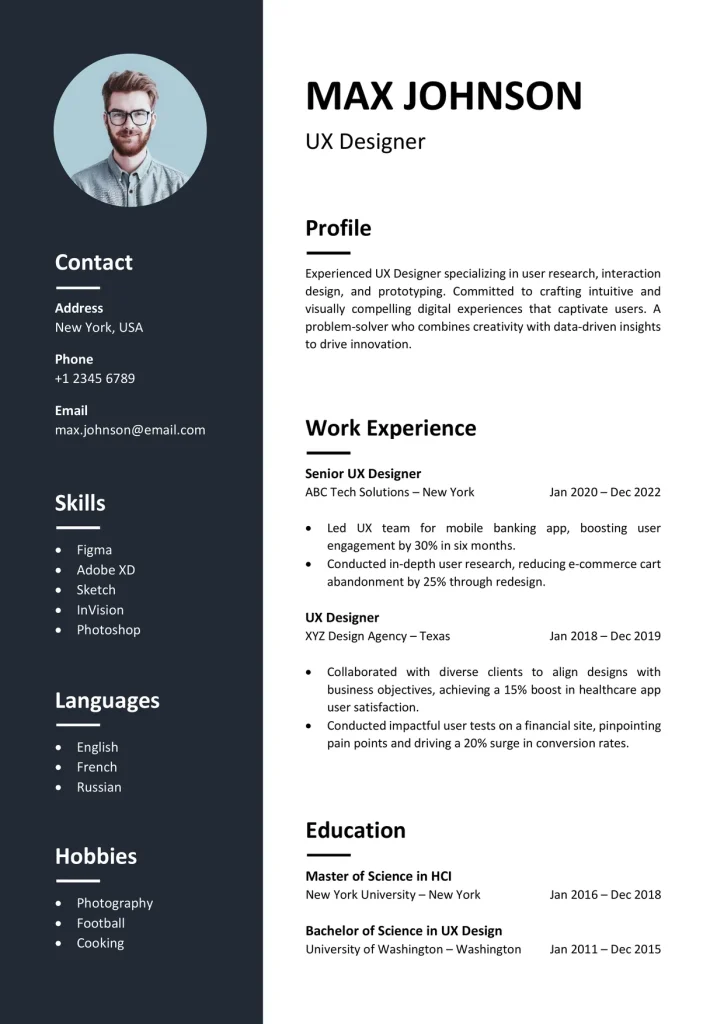
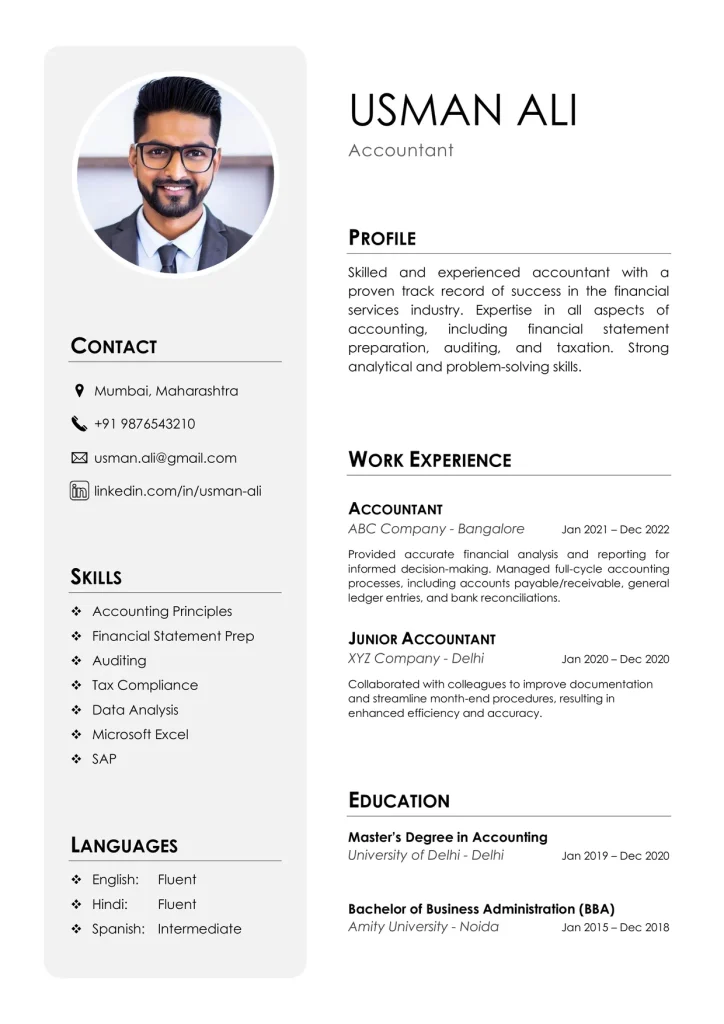
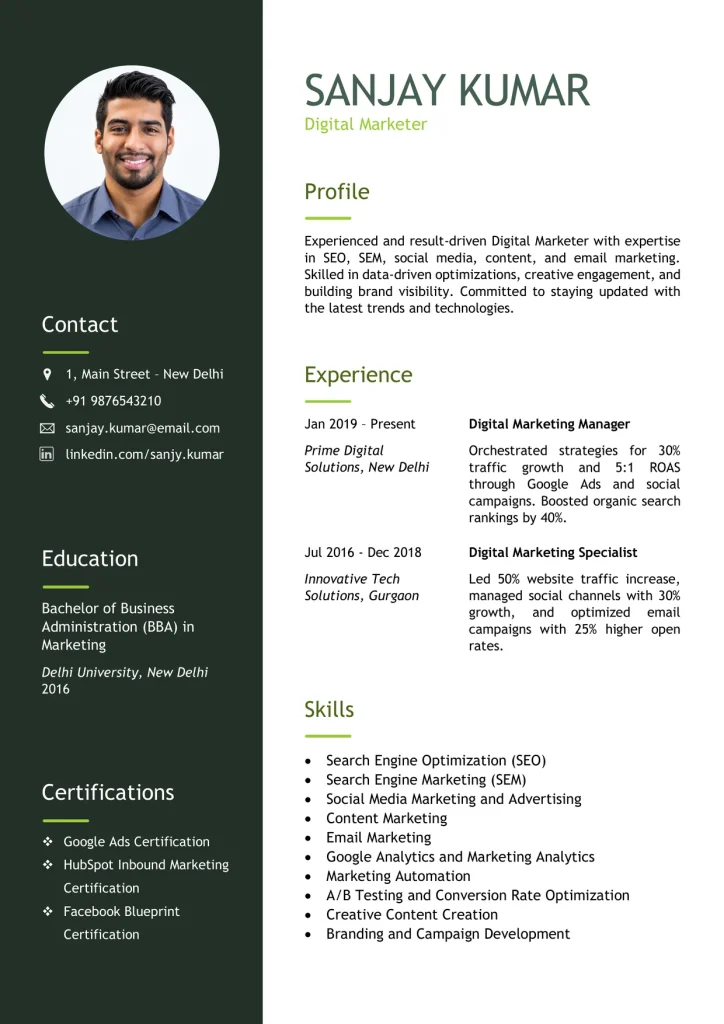
Most professional templates use a sidebar layout. Pick the one that fits your experience:- Left sidebar: keeps contact details, skills, languages, and certifications in a narrow column, so your experience gets the main space.
- Sidebar with a header band: adds your name and title across the top for a stronger first impression.
- Dark or light sidebar: dark sidebars stand out on screen. Light ones print more cleanly and use less ink.
What Makes a Professional Resume Template Work
A good professional resume format is calm and easy to scan:- One neutral color, such as navy or dark grey, used sparingly.
- Clear section headings such as Summary, Experience, Education, and Skills.
- Consistent spacing and alignment from top to bottom.
- Dates, job titles, and company names that are easy to find.
- Bullets that are short and specific.
Fonts and Formatting
Use a clean font such as Calibri or Arial. Body text works best at 10 to 11 pt, with section headings slightly larger and your name the largest. Keep headings and job titles bold, and use the same date format throughout. Leave enough margin so the page doesn’t feel crowded.What to Avoid
Some choices make a professional resume look less professional:- Bright colors, decorative icons, or heavy graphics.
- Long paragraphs instead of short bullets.
- Tiny text squeezed in to fit more content.
- Overfilling the sidebar with details that belong in your experience.
- Personal details your region doesn’t expect, such as age or marital status.
How to Write Each Section
A professional resume works when each part has a clear job. Use the sidebar for quick facts and the main column for your story.- Summary: two to three lines at the top of the main column, naming your role, your years of experience, and your strongest result.
- Experience: list jobs from newest to oldest. Give each role two to four bullets that start with an action verb and end with a result, such as a number, a saving, or a team size.
- Skills and certifications: keep them in the sidebar as a short list that matches the job post.
- Education: degree, school, and year. Move it below your experience once you have a few years of work history.
Tailor It to the Job
Read the job post and note the two or three responsibilities it stresses most. Put the experience that matches them first, and use the same wording for your job title and tools when it is accurate. For senior roles, lead with results rather than duties.Word or PDF?
Follow the instructions in the job post. If it asks for a .docx file, send the .docx. For most other applications, a PDF keeps the sidebar, margins, and spacing exactly in place on every device.When to Choose Another Style
If you are applying through an online job portal where software scans your file, a single-column ATS template is the safer choice. If you want more color and design, a Modern template may fit better.How to Edit in Word
Open the .docx file, replace the sample text with your details, and keep the sidebar and main column widths as they are. If your experience runs long, shorten the bullets before you shrink the text below 10 pt. If there is a photo, replace it by right-clicking and choosing Change Picture, or delete it if your region or employer doesn’t expect one. Save a copy for each job you apply to. Prefer a visual guide? Watch how to make a professional CV in Word.Table of Contents
Frequently Asked Questions
What is a professional resume template?
A ready-made Word layout with clear sections and a conservative design. You replace the sample text with your own details.
What is the difference between a resume and a CV?
In the US and Canada, a resume is a short summary of your career, and a CV is a longer document mostly used in academic roles. In the UK, Europe, and South Asia, “CV” usually means the same as a resume. These templates work for both.
How long should a professional resume be?
One page if you have less than about 10 years of experience, and two pages if you have more. Keep only what is relevant to the job.
Are professional resume templates ATS-friendly?
Sidebar layouts can sometimes be read out of order by ATS software. They work well for emailing or handing to an employer. For online job portals, use a single-column ATS template.
Should I keep the photo on the template?
Only if photos are normal in your country or the employer asks for one. In the US, UK, and Canada, most employers prefer no photo. If you remove it, delete the photo and adjust the spacing.
Can I change the colors?
Yes. In Word, open the Design tab to change the colors and fonts of the whole document at once. Stick to one neutral color for a professional look.
Can I use a professional template with little experience?
Yes. Put your education, internships, projects, and skills first, and keep the rest short. The layout still looks polished with fewer jobs.
Can I edit these templates in Google Docs or on my phone?
They are built for Microsoft Word on a computer. Google Docs and phone apps may move the sidebar or change the spacing, so check the layout before you send it.
Are these templates really free?
Yes. Download the .docx file with no sign-up and no watermark.