
ATS Resume Templates
Simple, single-column ATS resume and CV templates in Word (.docx). Free to download, easy to edit, ATS-friendly. No sign-up, no watermark.
When to Use This Style
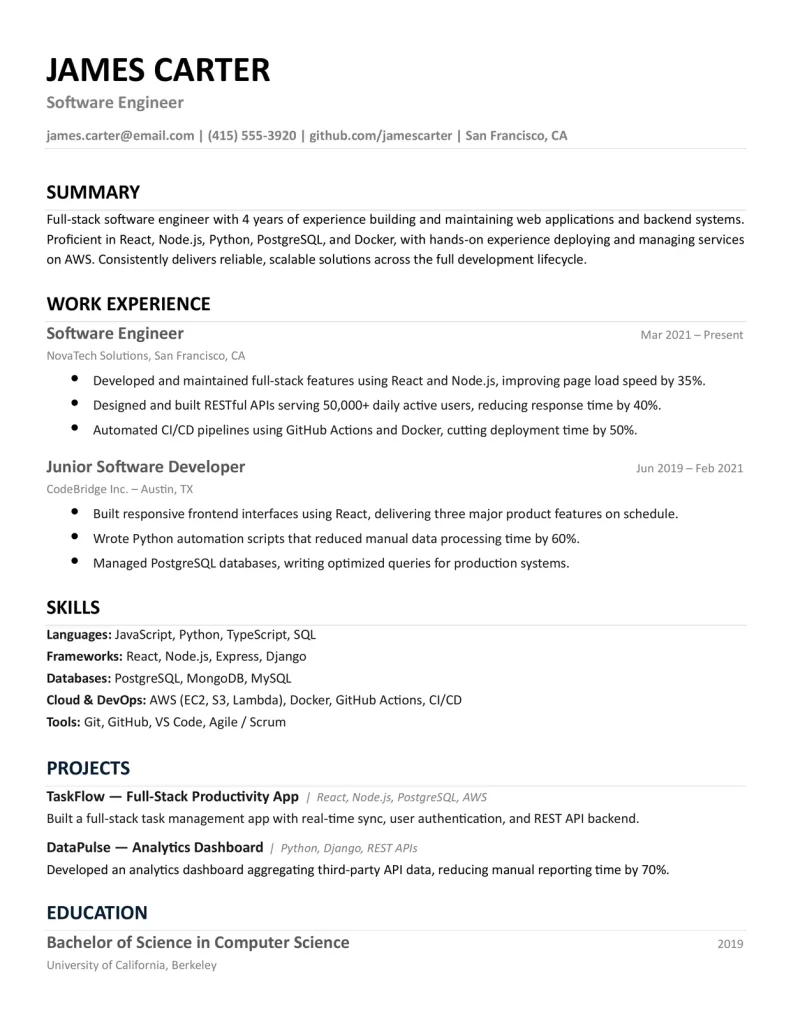
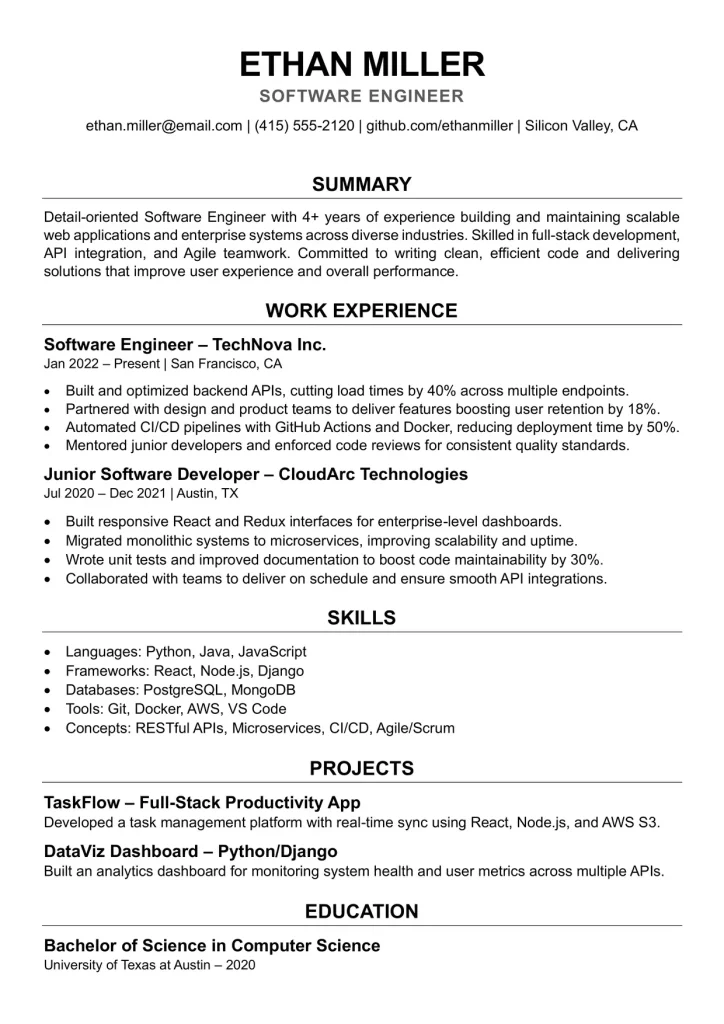
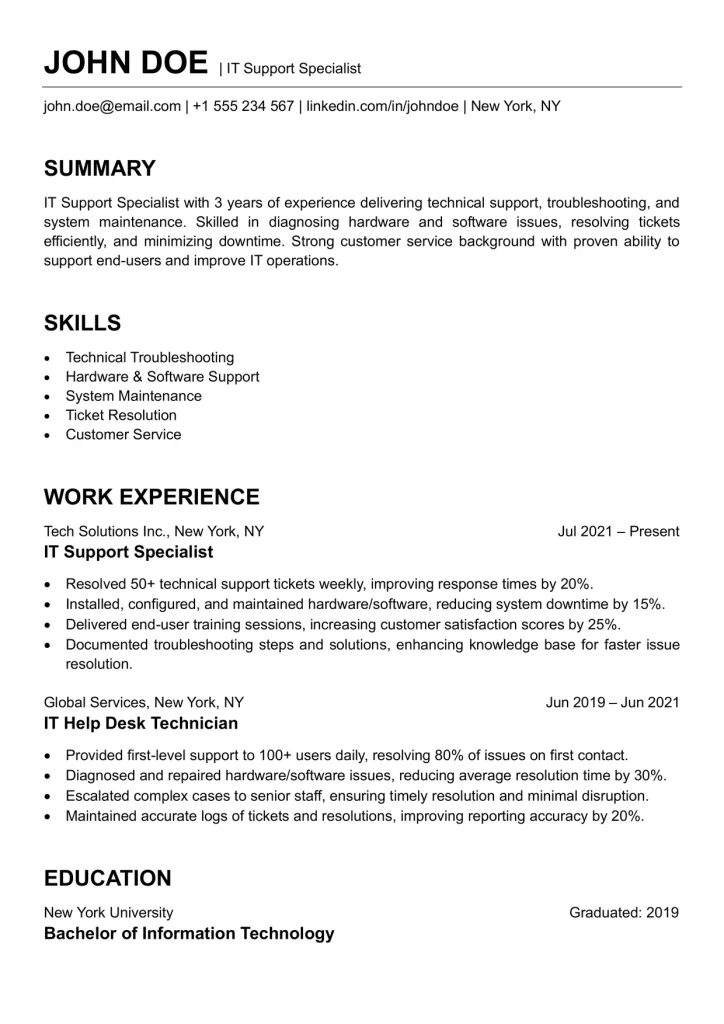
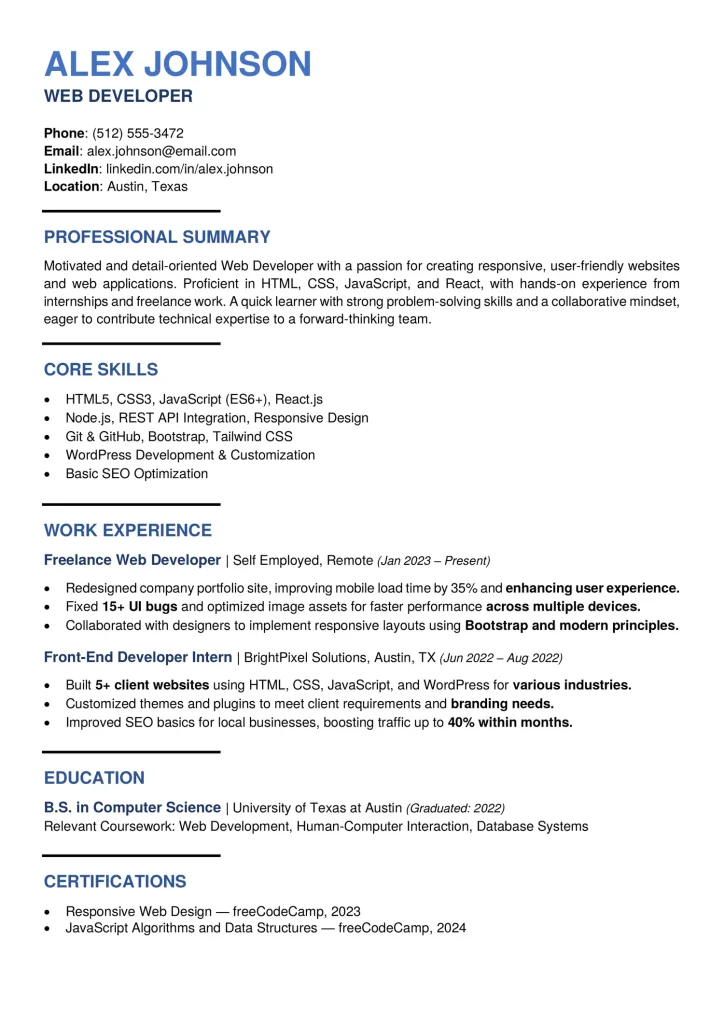
Built to be read by software first and people second.
- Apply through online job portals or company career pages
- Want the safest, simplest layout
- Aren't sure how the employer reads resumes
How to Use ATS Resume Templates
ATS resume templates keep your layout simple so hiring software can read every detail, whether you call it a resume or a CV. The same layout works as an ATS CV template if you are applying in the UK, Europe, or South Asia.
How Applicant Tracking Systems Read Your Resume
Many employers collect applications through an applicant tracking system, or ATS. When you upload a file, the software reads the text and sorts it into fields such as name, contact details, job titles, dates, education, and skills. Recruiters then search and review those fields.
A simple layout is easy to read in order, but complex designs can scramble the text, so a job title ends up in the wrong field or a section goes missing. An ATS-friendly template keeps the structure simple so your details land in the right place.
What Makes a Template ATS-Friendly
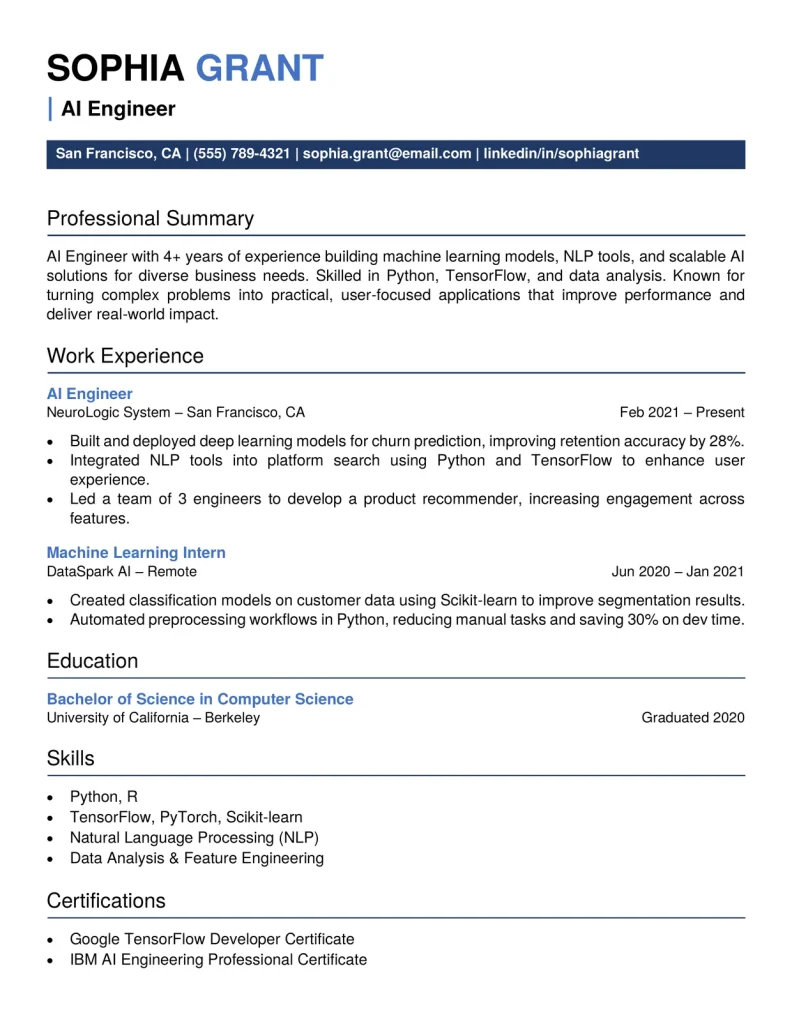
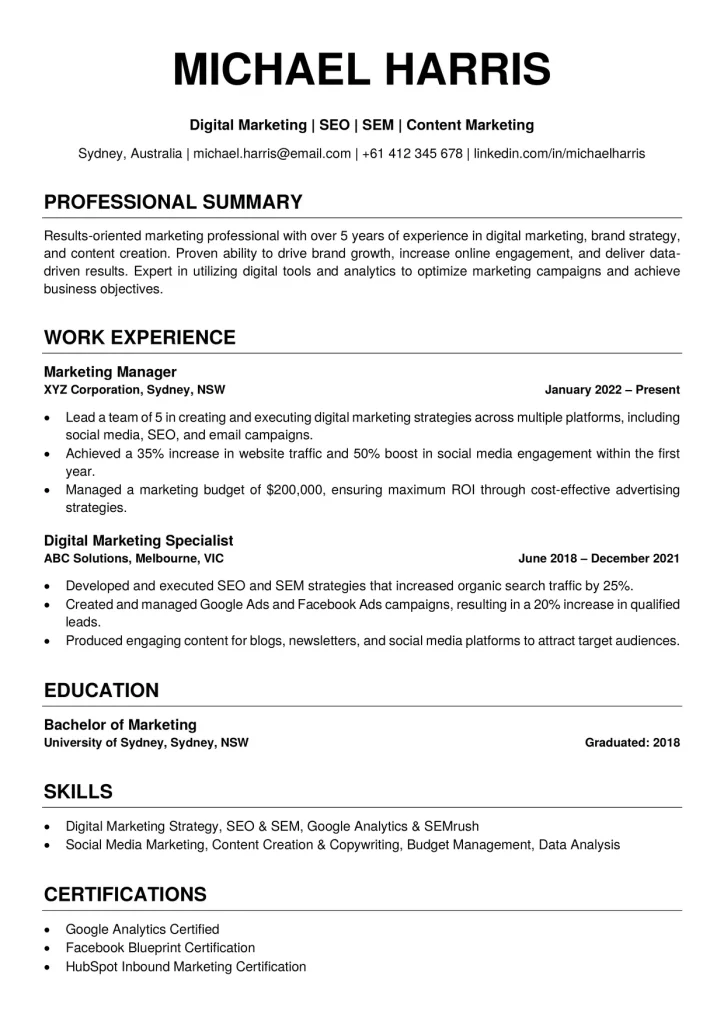
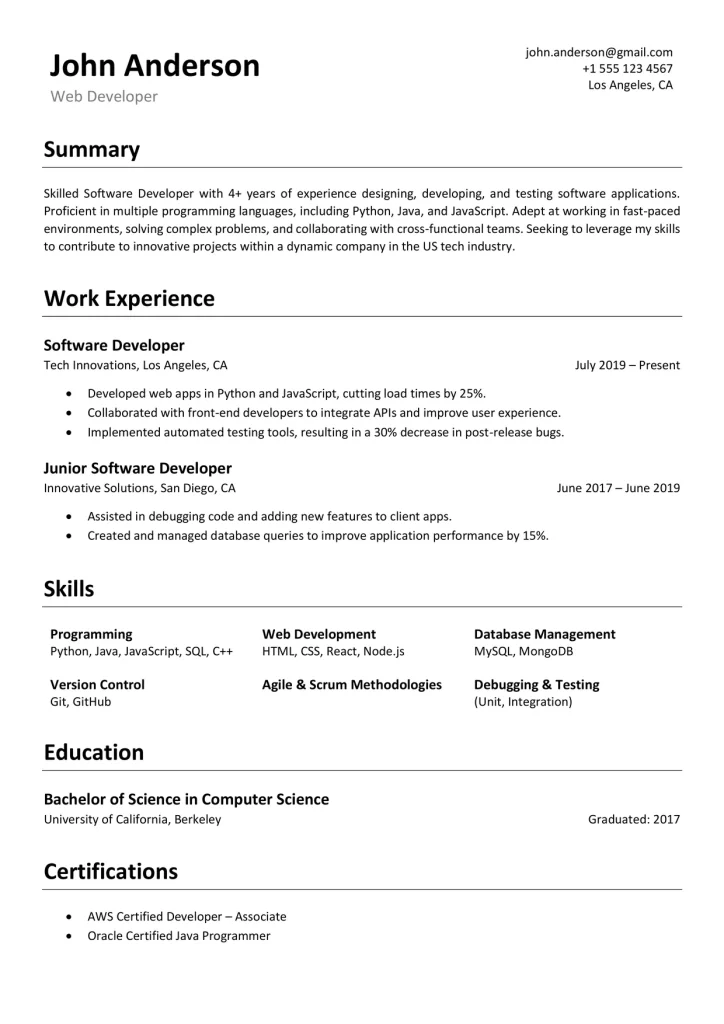
A good ATS resume format follows a few simple rules:
- A single column that reads from top to bottom.
- Standard headings such as Summary, Work Experience, Education, and Skills.
- Contact details in the main body, not inside a header, footer, or text box.
- No tables, icons, or skill bars carrying important information.
- Plain bullet points and one date format throughout.
Example
Work Experience → Job Title, Company, City → Dates → Bullet points
Fonts and Formatting
Use a standard font such as Calibri or Arial at 10 to 12 pt. Use bold for headings and job titles, and keep spacing the same throughout. Align text to the left and avoid images and decorative lines that could confuse a parser. Keep the sections in the same order on every page.
What to Avoid
Some common design choices cause problems when software reads the file:
- Two or more columns.
- Tables and text boxes used for layout.
- Icons, graphics, and skill rating bars.
- Photos, unless the employer or your region expects one.
- Creative section names such as “My Story” instead of “Summary”.
- Contact details placed in the header or footer.
How to Write Each Section
The layout only works if the content is clear. Keep each section short and specific.
- Summary: two to three lines naming your role, your experience, and what you want next.
- Work Experience: list jobs from newest to oldest with title, company, city, and dates. Use short bullets that start with an action verb and show the result.
- Skills: a plain list of skills that match the job post.
- Education: degree, school, and year.
New to resume writing? Read our guide to writing a resume →
Tailor It to the Job
Read the job post and reuse its key terms where they truthfully match your skills and experience. Use the same wording for your job title and tools when it is accurate, and spell out an acronym once, for example Search Engine Optimization (SEO). Applicant tracking systems and recruiters both search for these terms.
Warning
Keep the wording natural, never list skills you don’t have, and don’t hide keywords in white text.
Word or PDF?
Follow the instructions in the job post. If it asks for a .docx file, send the .docx. If you are emailing a person, a PDF keeps your layout the same on every device. Most applicant tracking systems read both .docx and text-based PDFs, but avoid scanned or image-only PDFs.
Tip
Whichever you send, open the final file and check that the text, dates, and headings look right.
When to Choose Another Style
If you are handing your resume to a person, or applying somewhere that values design, a Modern or Professional template may fit better. Those styles focus on readability and presentation, and they are not built for ATS parsing.
How to Edit in Word
Open the .docx file, replace the sample text with your details, and keep the headings as they are. Don’t add text boxes, tables or images, because some systems skip them. Delete any section you don’t need instead of changing its layout. Save a copy for each job you apply to.
Prefer a visual guide? Watch how to make an ATS-friendly resume in Word.
Table of Contents
Frequently Asked Questions
What is an ATS-friendly resume?
A resume with a simple layout and standard headings that applicant tracking systems (ATS) can read without errors.
Are two-column layouts safe for ATS?
They can cause reading-order problems, so a single column is the safer choice.
Which fonts are safe for ATS?
Standard fonts such as Calibri or Arial work well at 10 to 12 pt. Most of our templates already use them.
Should I upload a Word or PDF file?
Follow the job post. If it asks for a .docx, send the .docx. If it doesn’t say, send a .docx for online applications, or a PDF if you’re emailing a person.
How can I check my resume is ATS-friendly?
Copy the text into a plain text editor such as Notepad. If the order, headings, and dates stay clear, software should read it well too.
Should I put a photo on an ATS resume?
Usually not in the US, UK, or Canada, because photos can confuse parsing software and many employers don’t want them. If your region or the employer expects one, follow the job post.
Can I use these ATS templates as a CV?
Yes. The simple single-column layout works for both resumes and CVs, and the standard headings keep it readable for ATS. Add any sections your region expects, such as a personal profile.