
Resume Templates
Free, editable resume and CV templates in Word (.docx). Pick a style, open the file, and add your details. No sign-up, no watermark, no hidden fees.
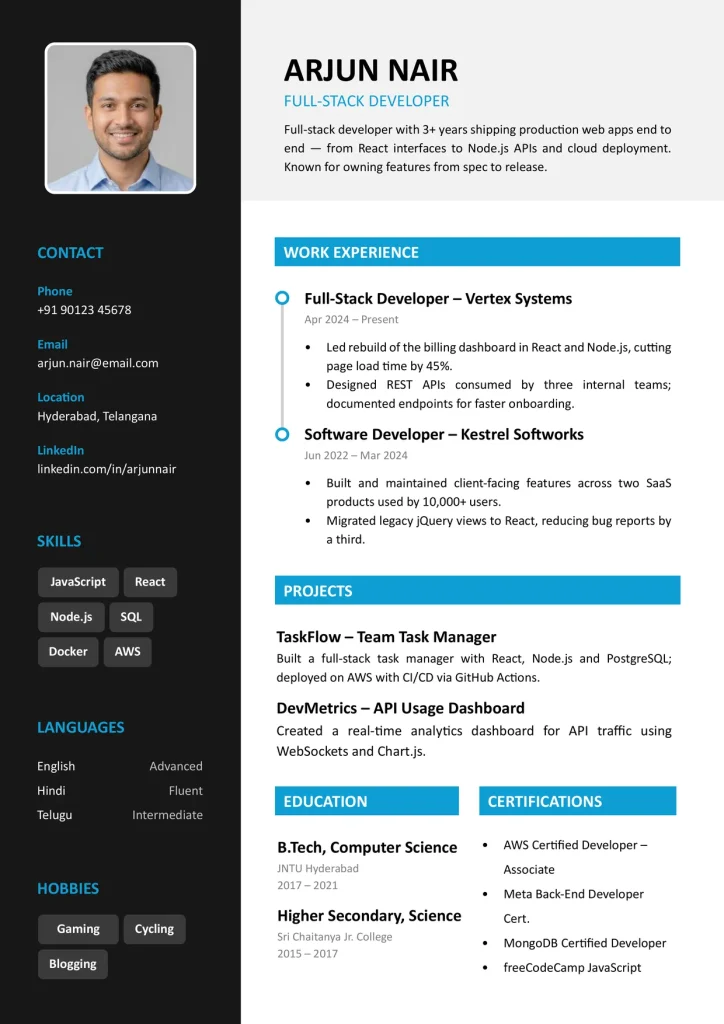
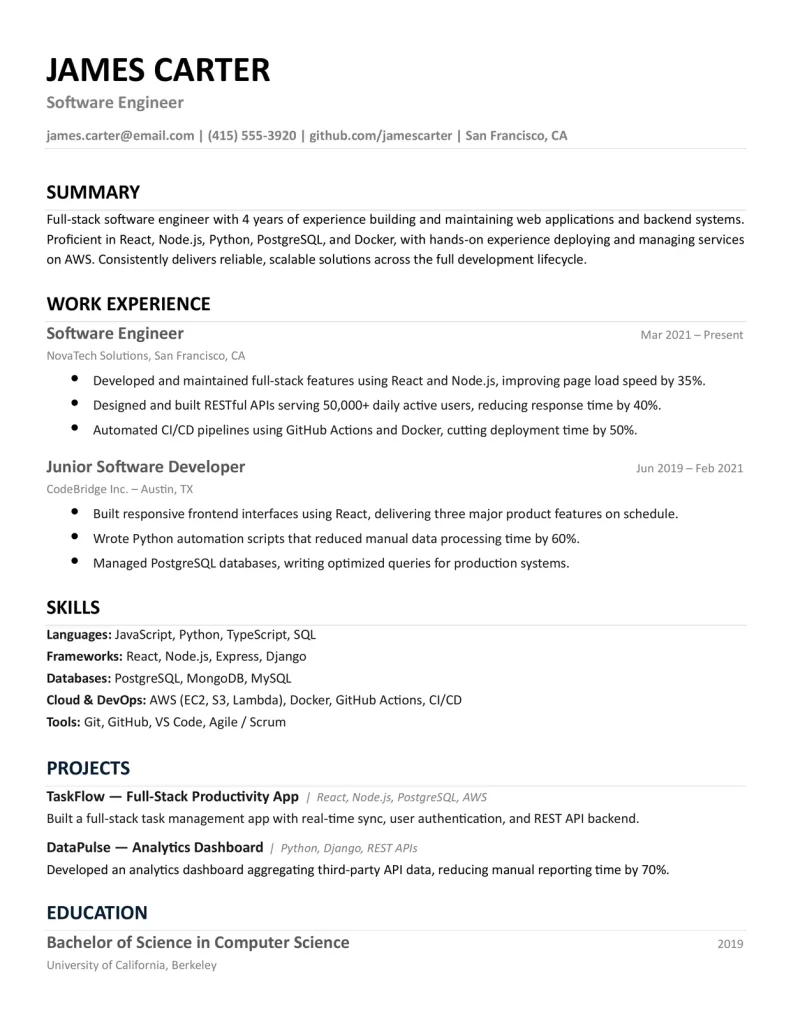
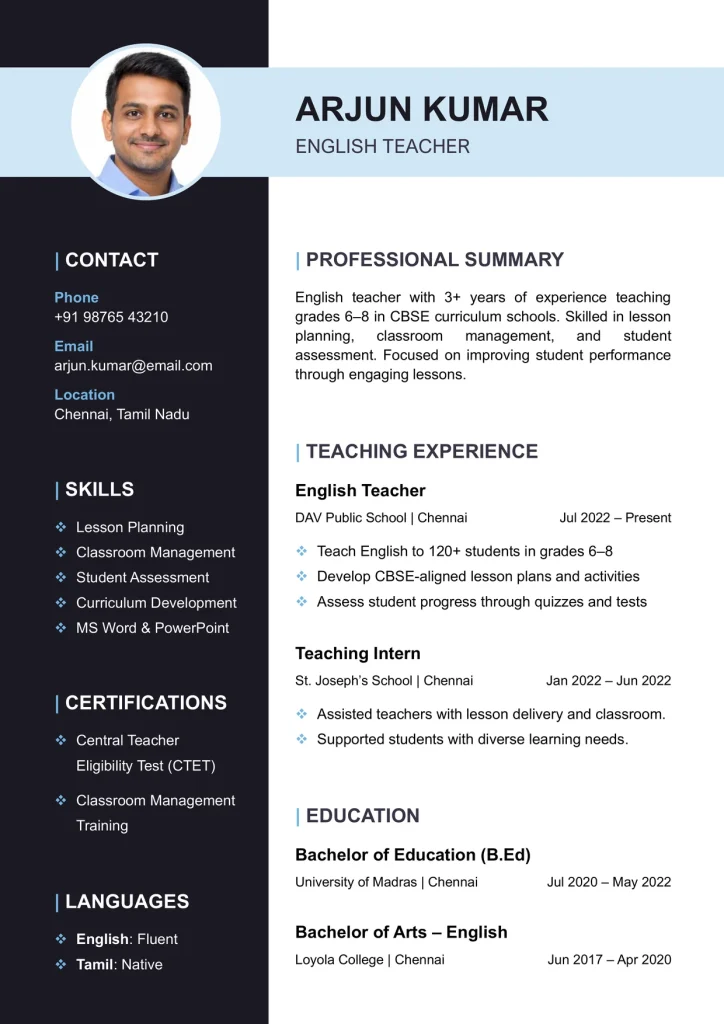
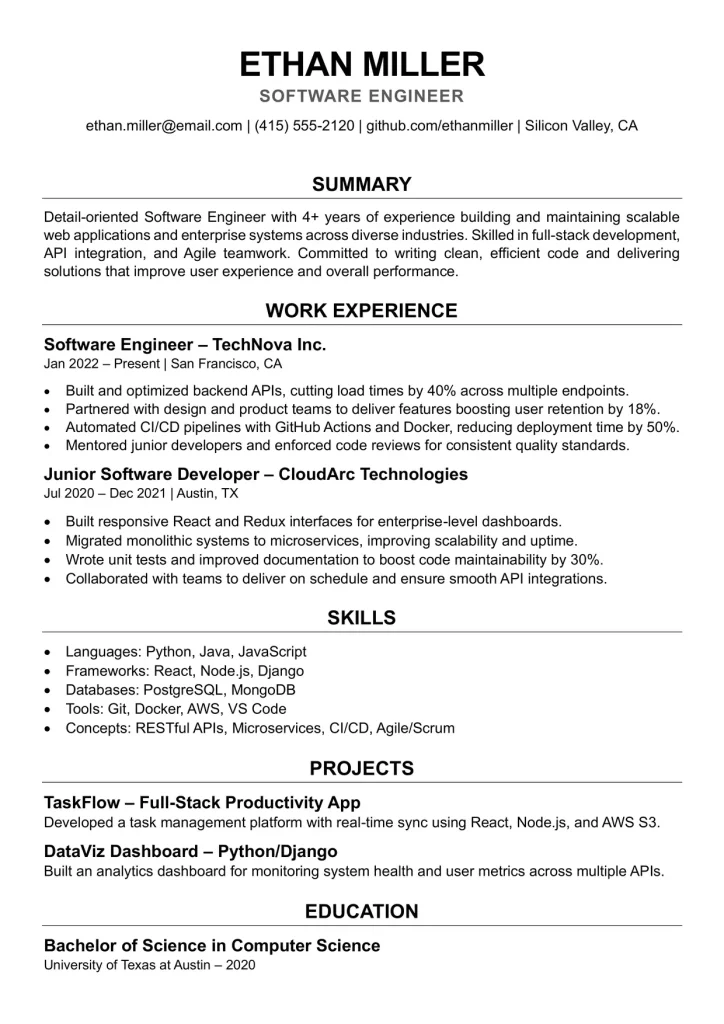
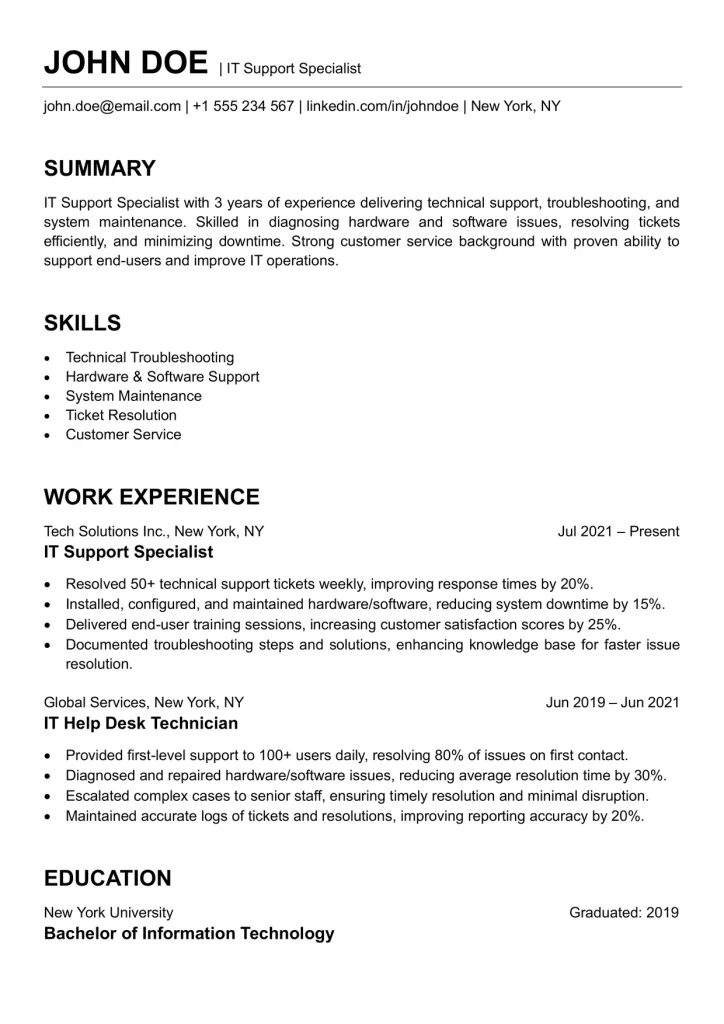
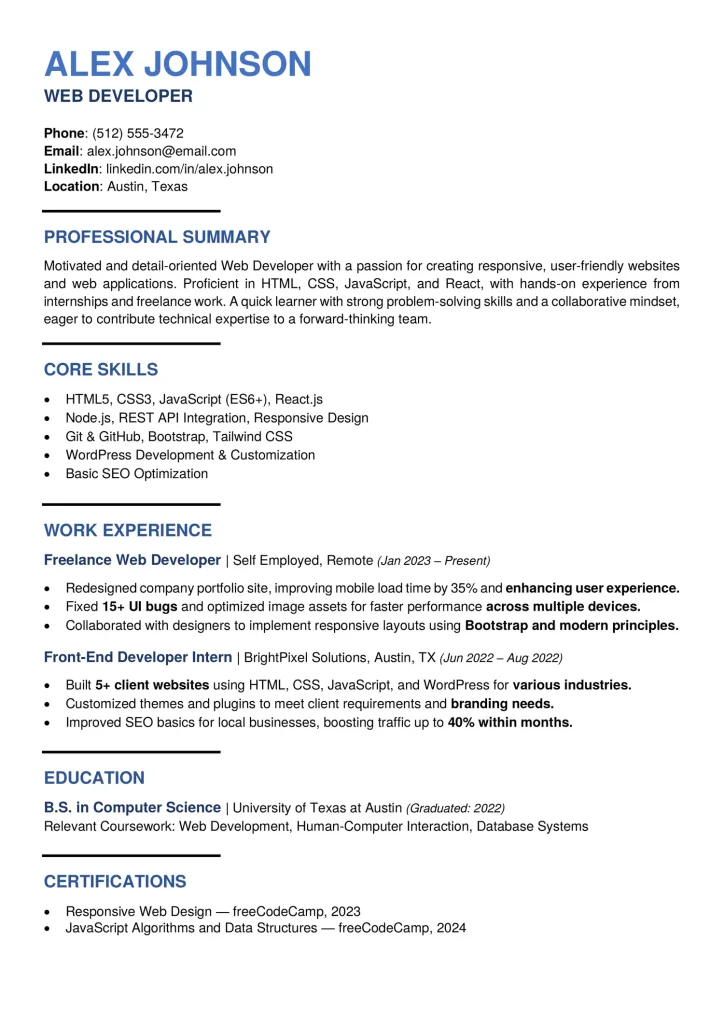
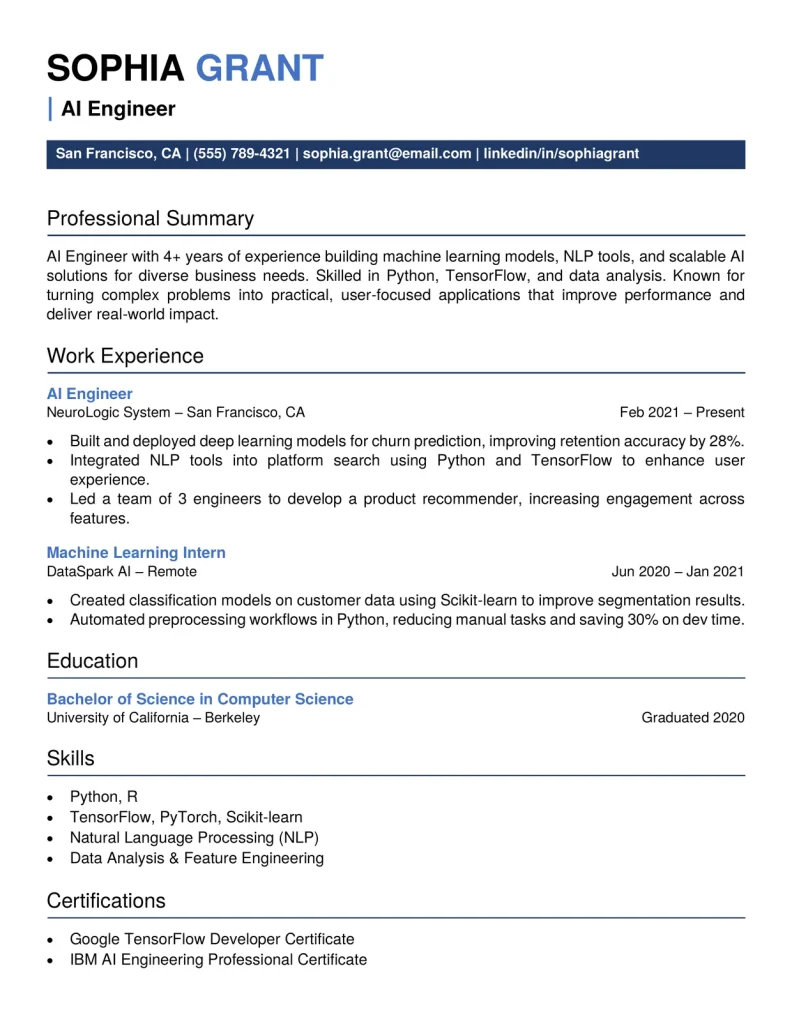
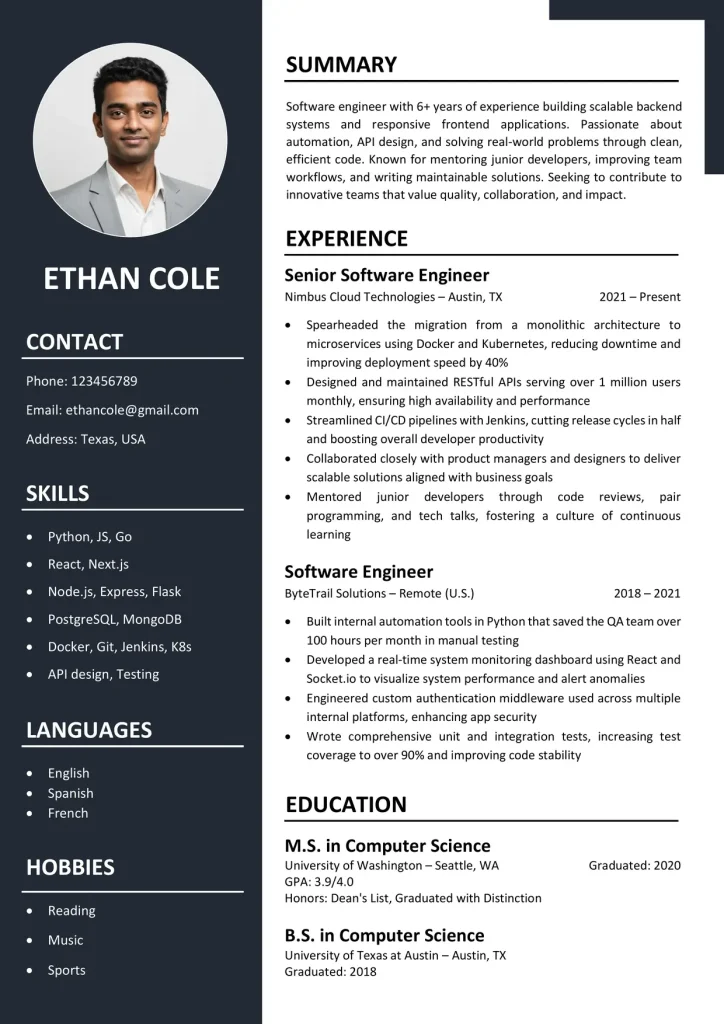
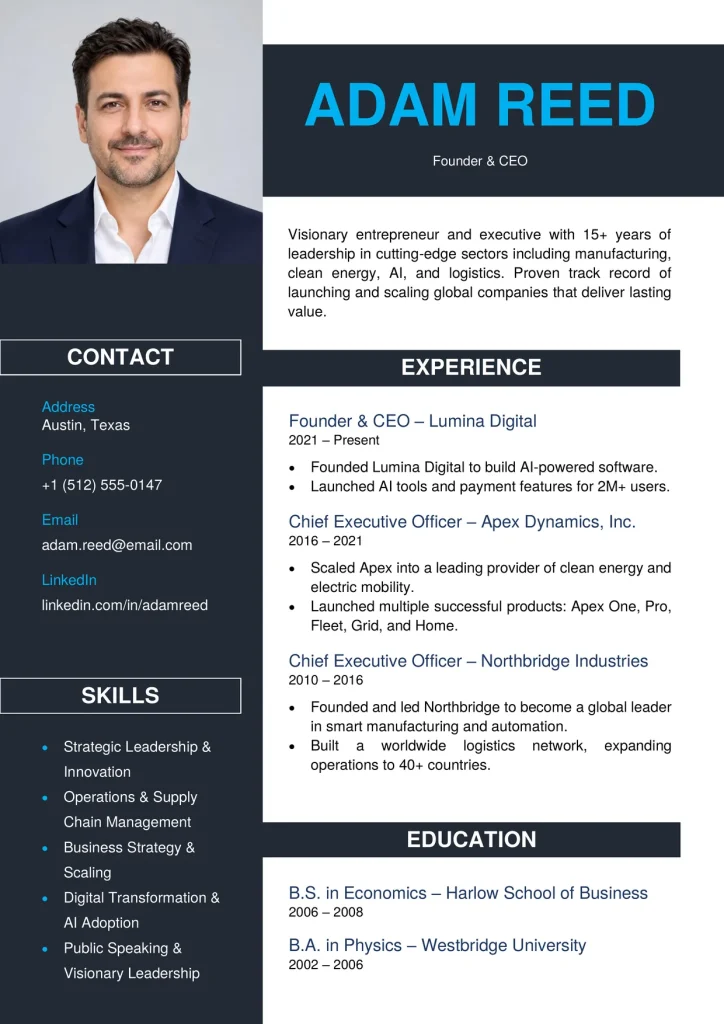
Most Popular Resume Templates
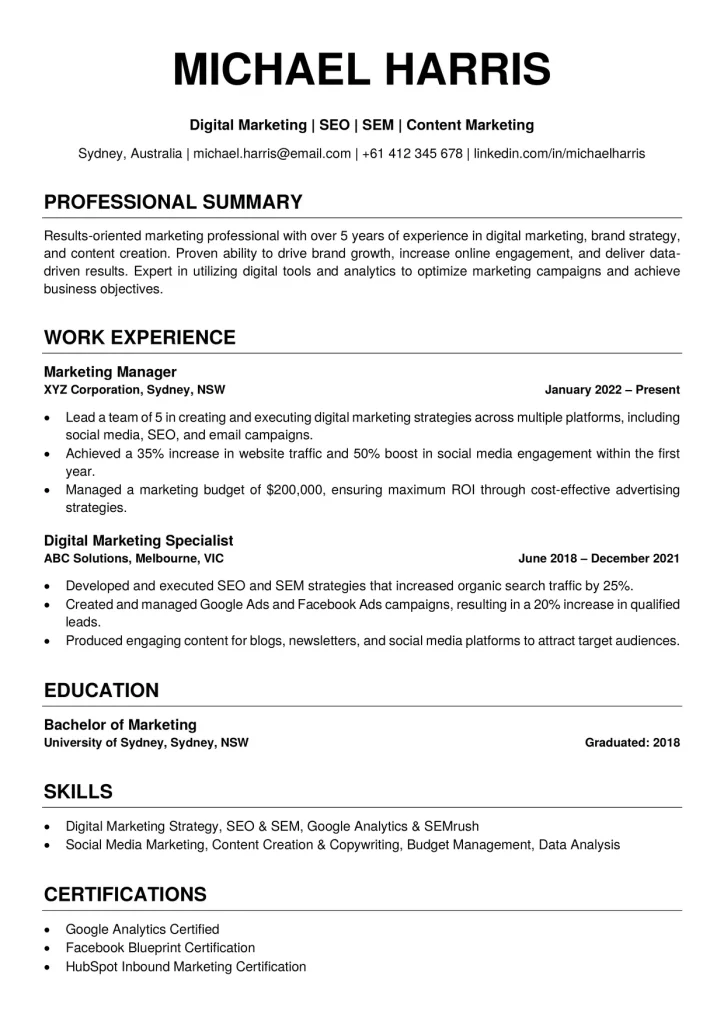
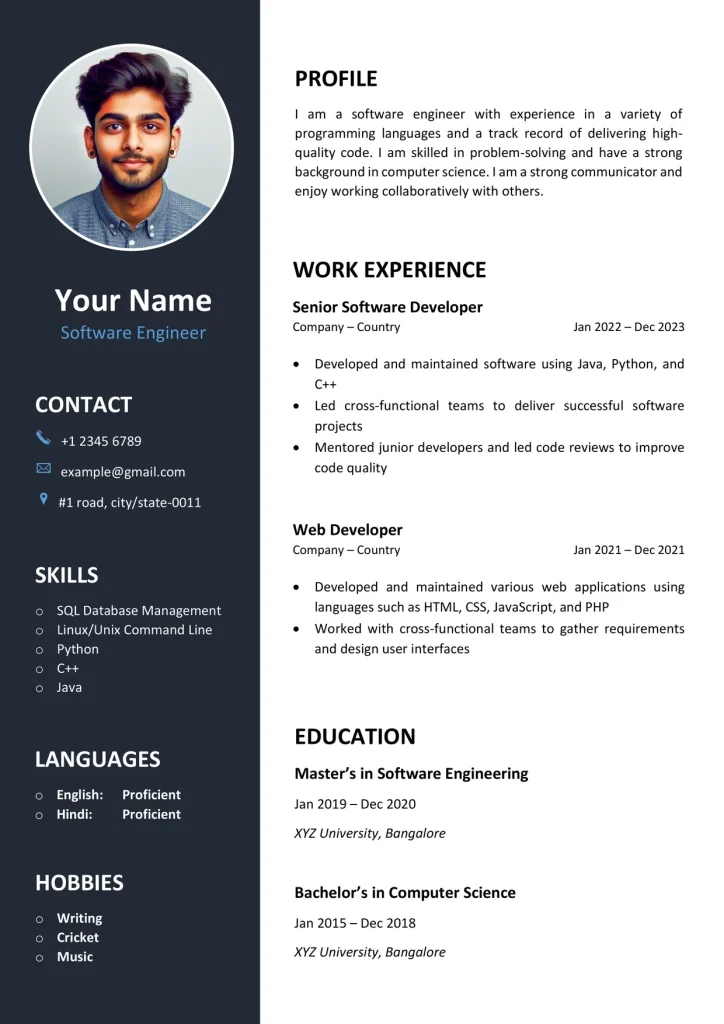
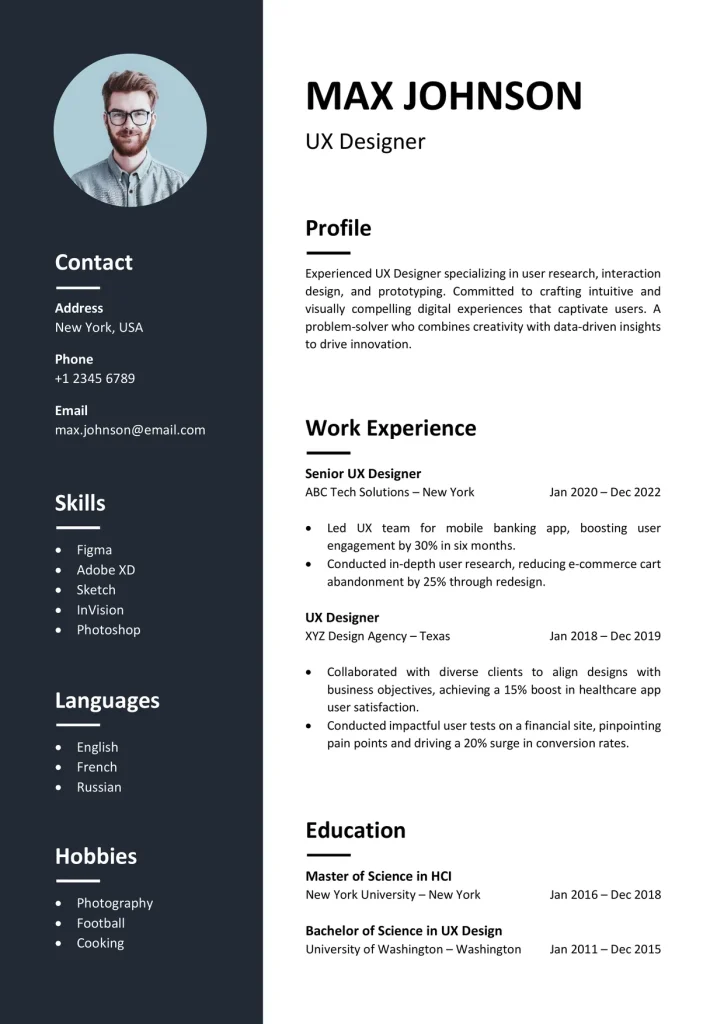
Resume Templates: How to Choose, Edit, and Write Yours
A good resume or CV starts with the right template. This guide helps you choose a style, pick a resume format, edit the file in Word, and write each section in plain words. It also covers formatting, file types, and using AI wisely. Read it through, or jump to the part you need.
Key Takeaways
How to Choose the Right Resume Template
Pick the style first and the design second.
ATS-Friendly Templates
ATS-friendly templates use a plain single-column layout with standard headings and no graphics. They suit online job portals and large employers, because software and people can read them easily. The trade-off is a quieter look, so your content has to do the work.
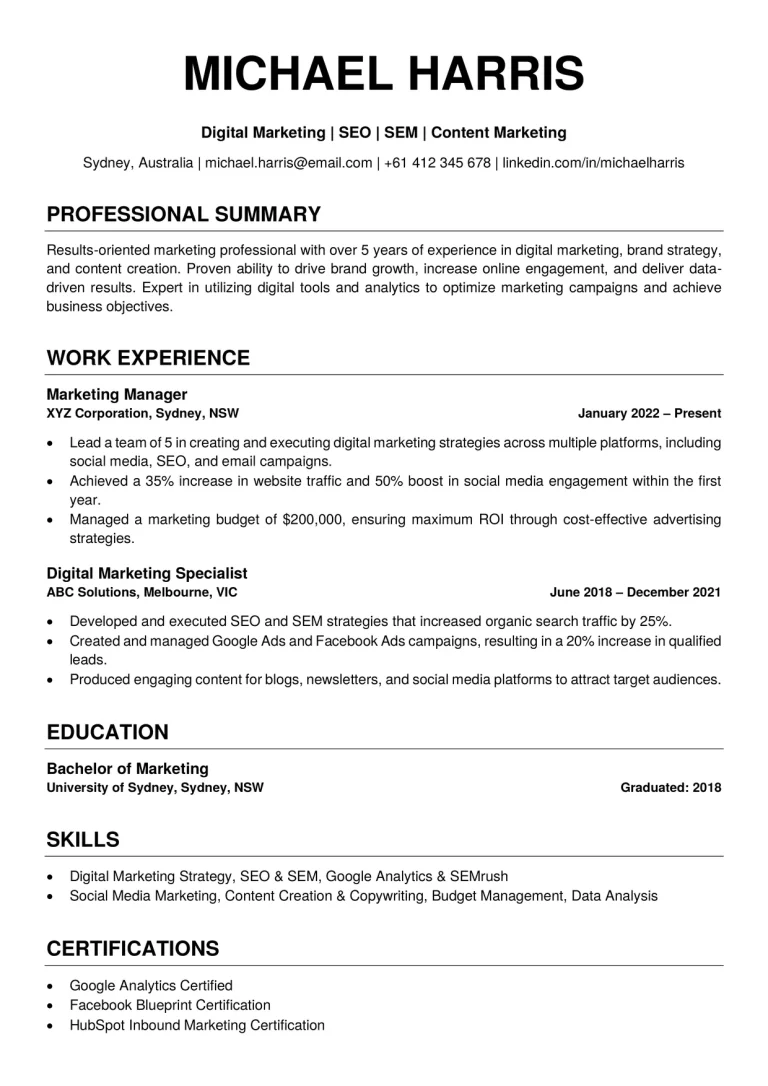
Browse ATS Resume Templates →
Clean single-column layouts that software reads easily.
Modern Templates
Modern templates use color, icons, and sidebars to add personality. They suit creative or customer-facing roles such as design, marketing, and sales. The trade-off is that some portals read columns and icons poorly, so check how the employer collects applications.
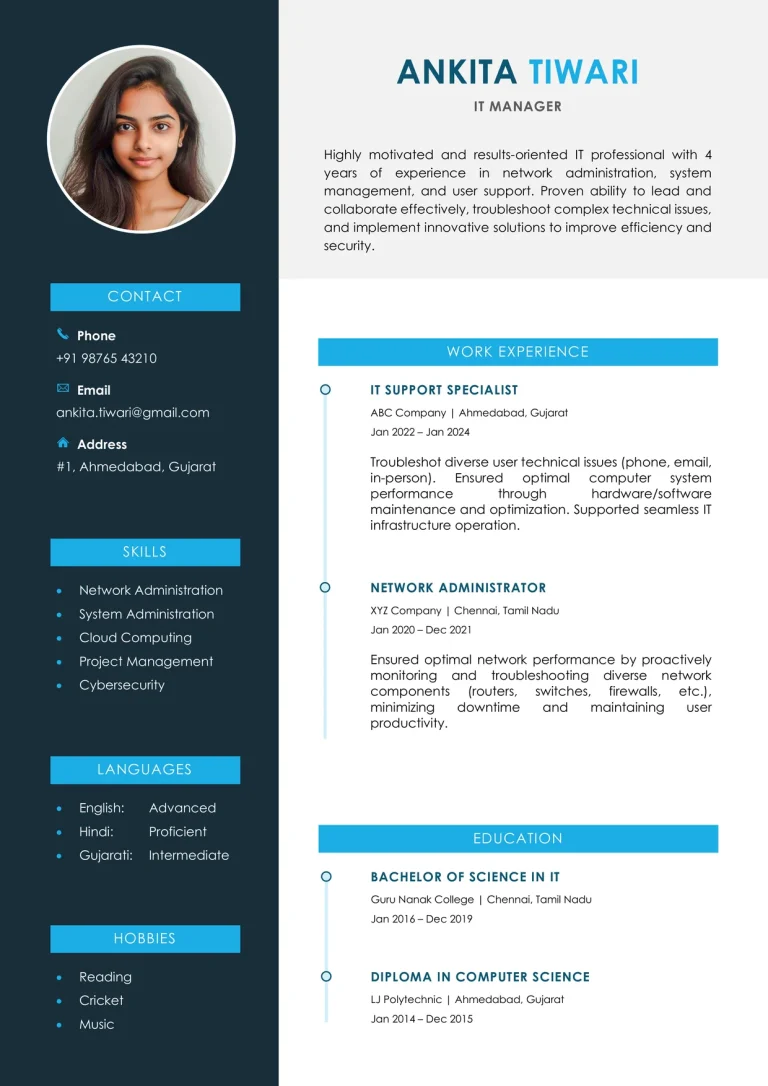
Browse Modern CV Templates →
Color, icons, and sidebars for a memorable first impression.
Professional Templates
Professional templates use dark text, clear headings, and generous spacing. They suit finance, law, government, and healthcare, where employers expect a formal tone. The trade-off is a less eye-catching page, though it looks careful and credible.
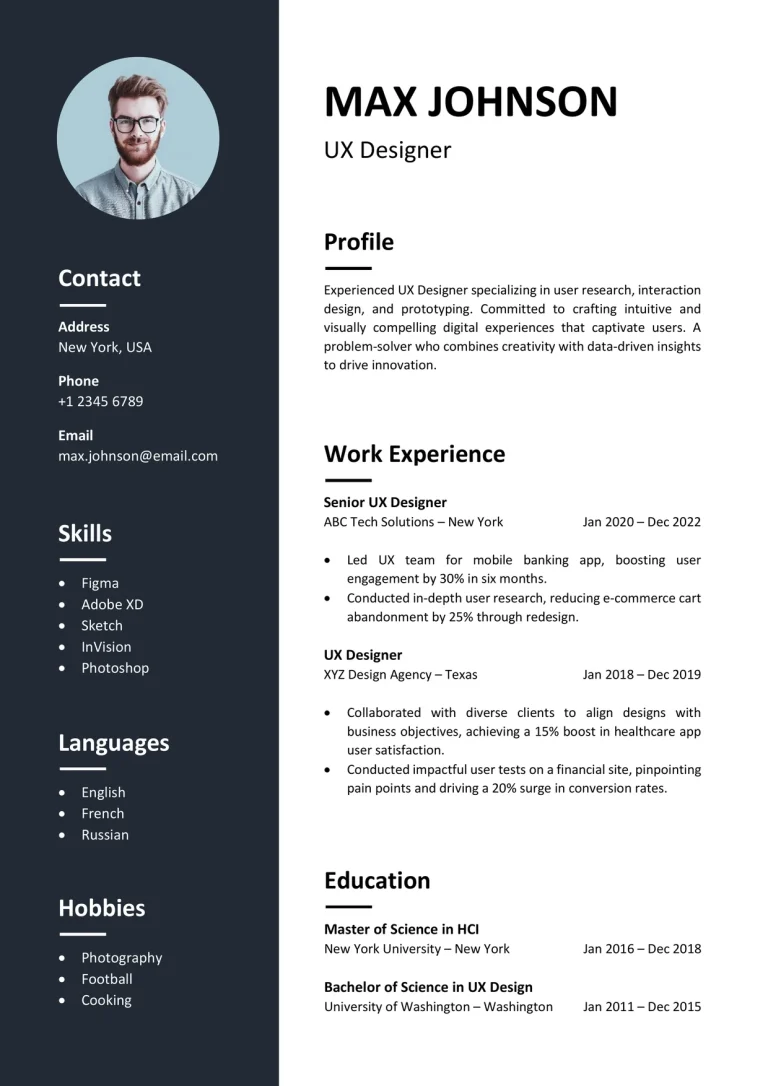
Browse Professional Resume Templates →
Conservative, corporate-ready looks for formal fields.
Tip
Match the style to the job and the industry, not to what looks nicest.
Which Resume Format Fits You?
A resume format is the order of your content, and the same three work for a CV. Choose the one that shows your background in the best honest light.
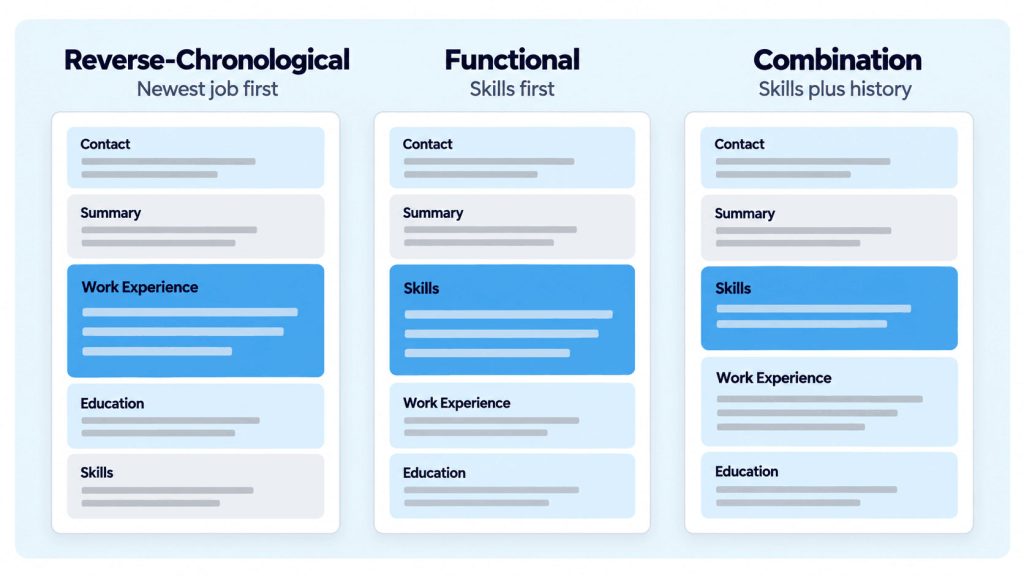
Reverse-Chronological
This format lists jobs from newest to oldest. It suits people with a steady work history, and most employers expect it. The drawback is that gaps and frequent job changes are easy to see.
Functional
This format puts skills first and keeps the job history short. It suits limited experience or career gaps. The drawback is that some recruiters distrust it, and some systems read it poorly.
Combination
This format opens with a skills summary, then lists your work history. It suits career changers who want to show transferable skills. The drawback is length, since it is harder to fit on one page.
How to Download and Edit Your Resume Template in Word
Every resume and CV template on this site is a free Word (.docx) file. Follow these steps to make it yours.
- Pick a template. Choose the style and format that fit your job.
- Download the .docx file. No sign-up is needed.
- Open it in Word. Click Enable Editing if Protected View appears.
- Replace the placeholder text. Type over each line to keep the spacing.
- Adjust the sections. Delete what you do not need and copy entries to add more.
- Save the file. Use a clear name and export a PDF copy.
Google Docs and WPS Office can also open .docx files, though minor layout shifts are possible.
Prefer a visual guide? Watch how to edit a resume template in Word.
How to Write a Resume
Every strong resume or CV uses the same core sections. Here they are in the usual order, with an example for each.
Contact Information
Keep your contact block short, since it is the first thing a recruiter reads. Put your name at the top in the largest font, then add your phone number, a professional email address, and your city and country. Add a LinkedIn link if it helps. A photo is usually left out of US resumes.
Example
John Doe · Austin, TX · john.doe@email.com · (512) 555-0142 · linkedin.com/in/johndoe
Professional Summary
A professional summary is a two- or three-line introduction under your contact details. It says who you are, what you do well, and what role you want. Name your field, your years of experience, and one or two skills that match the job. Avoid vague words such as “hardworking”. Write it last, and rewrite it for each application.
Example
Customer support specialist with four years in e-commerce. Skilled in live chat, ticket handling, and CRM tools. Looking to join a support team that values clear communication.
Work Experience
List your jobs from newest to oldest, with the job title, company, city, and dates. Use one date format throughout. Under each role, add three to four short bullets instead of a paragraph. A strong bullet shows what you did and what changed, and any numbers you use must be ones you can back up.
- Start with an action verb such as managed, built, trained, reduced, or organized.
- Describe the task in one clear line.
- Finish with the result or the benefit to the team.
- Keep each bullet to one or two lines.
Example
Cut reply times by writing reusable answer templates for common questions.
With no paid work yet, describe internships, projects, or volunteering the same way as a job.
Education
Add your degree, school, and graduation year, newest first. If you graduated recently and have little experience, place this section above Work Experience; later in your career, move it below. Include your grade only if it is strong, and list certifications with the issuing body and year. Leave out secondary school once you have a degree.
Skills
List six to ten skills that match the job post, using the same wording the employer uses. If the post says “Microsoft Excel”, write that rather than “spreadsheets”. Group a long list into short categories such as Software and Languages. Be honest about your level, and show soft skills through your bullets instead.
Example
Software: MS Excel, Google Sheets, Zendesk · Languages: English, Spanish · Other: Data entry, Customer support
Want to see every section written out? Watch the full resume writing walkthrough.
Resume Formatting Best Practices
Good formatting makes your content easy to read in the few seconds a recruiter spends on a first scan. Keep the layout simple and consistent. These habits work for any resume or CV.
- Keep it to one page if you have under about 10 years of experience.
- Set margins between 0.5 and 1 inch.
- Use a clean font such as Calibri or Arial at 10 to 12 pt.
- Make headings slightly larger than the body text.
- Use single or 1.15 line spacing.
- Write dates in one format throughout.
- Use standard section headings.
White space matters, so cut older details before you shrink the font. Common fonts such as Arial and Calibri look the same on every device, while a missing font can shift your layout. Most of our templates use Calibri or Arial, so the layout stays intact when you open the file.
Use
✓ Work Experience
Avoid
✕ My Story
The first heading is clear. The second is creative, but a recruiter or a system may not know what it means.
Tip
Export to PDF to lock the layout, unless the employer asks for Word.
Which File Type: Word, PDF, or Google Docs?
Follow the job posting’s instructions first. If it doesn’t say, send a PDF, because it keeps your layout the same on every device. Send a .docx when the employer or job portal asks for it. Google Docs works for editing, but export the file and check it before you send it.
Using AI to Help With Your Resume Text
AI tools can help with wording. Ask for ways to phrase a bullet, shorten a long sentence, or draft a first summary that you then rewrite.
Warning
Treat the output as a draft and edit it so it sounds like you. Never keep achievements, job titles, tools, or numbers that are not true, and check every claim against your real history.
Ready to start? Pick a template above, or browse by style: ATS, Modern, or Professional. Open it in Word and add your details.
Table of Contents
Frequently Asked Questions
What is the best resume template to use?
The one that fits the job. ATS-friendly templates suit online applications, Professional suits conservative fields like finance and law, and Modern suits creative or customer-facing roles.
Why does my resume look different on another computer or on a job portal?
Usually a font is missing on that device, or the portal re-renders the file in its own layout. Stick to common fonts like Arial or Calibri, and send a PDF when the employer allows it.
How do I edit a template without breaking the formatting?
Replace the placeholder text instead of deleting sections, use Format Painter to copy styles, and keep a backup copy of the original file.
Should my resume be one page or two?
One page is enough if you have under about 10 years of experience. Two pages are fine for longer careers, as long as every line is relevant.
What is the best resume format?
For most people it is reverse-chronological, because employers expect it and it shows your career clearly. Choose combination if you are changing careers. Avoid functional unless you have a good reason, since some recruiters distrust it and some systems read it poorly.
Which CV format should I use?
A CV uses the same layouts as a resume but runs longer and lists more detail, such as projects or publications. Pick reverse-chronological unless you are changing careers. Our Word templates work for either.